
How to Post to Your Instagram Directly From Canva
About this Squarespace video tutorial
Gone are the days of downloading and uploading files between platforms, because now you can post the high-quality graphics you make in Canva directly to Instagram, streamlining your process and saving you a ton of time!
Want 20% off your new Squarespace subscription?
Subscribe to the Designing the Row® email list and get the exclusive code sent straight to your inbox. You’ll get email updates when new Squarespace tutorials are published, but you can unsubscribe at any time.
If you often find yourself using Canva to create graphics for social media, you’re probably in a process of creating, exporting, and uploading that can take a lot of time. This recently got way easier for Canva users, and I’ve been benefiting from this, so I wanted to share.
Once your graphics are created in Canva, click ‘Share’ like you normally would to download the files, and two spaces to the right of the download button you should now see a bright, pink Instagram share button.
Click on that and it will prompt you to connect your account. Follow those steps and you’ll be ready to post to your connected Instagram account.
Once that’s done, you’ll be ready to choose the format that the post will be in (Post, Reel/Video, or Story), choose which pages and images you’ll be using, write your caption, tag other Instagram users, and send the post out live!
(Note: there is an option to ‘Invite Collaborators’ in this screen, but I tried it and was unsuccessful so I won’t recommend relying on that option right now)
I don't know about you, but I've got a backlog of Canva files, so finding this new integration between the platform and Instagram has been a massive help and I wanted to share it with you! If you want to see what I’m posting, follow DTR on Instagram @DesigningTheRow!
And if you need help gathering stock images to use for these Canva posts, check out that video here!
*Affiliate disclaimer: Some links may be affiliate links at no extra cost to you.
The latest Designing the Row tutorials…

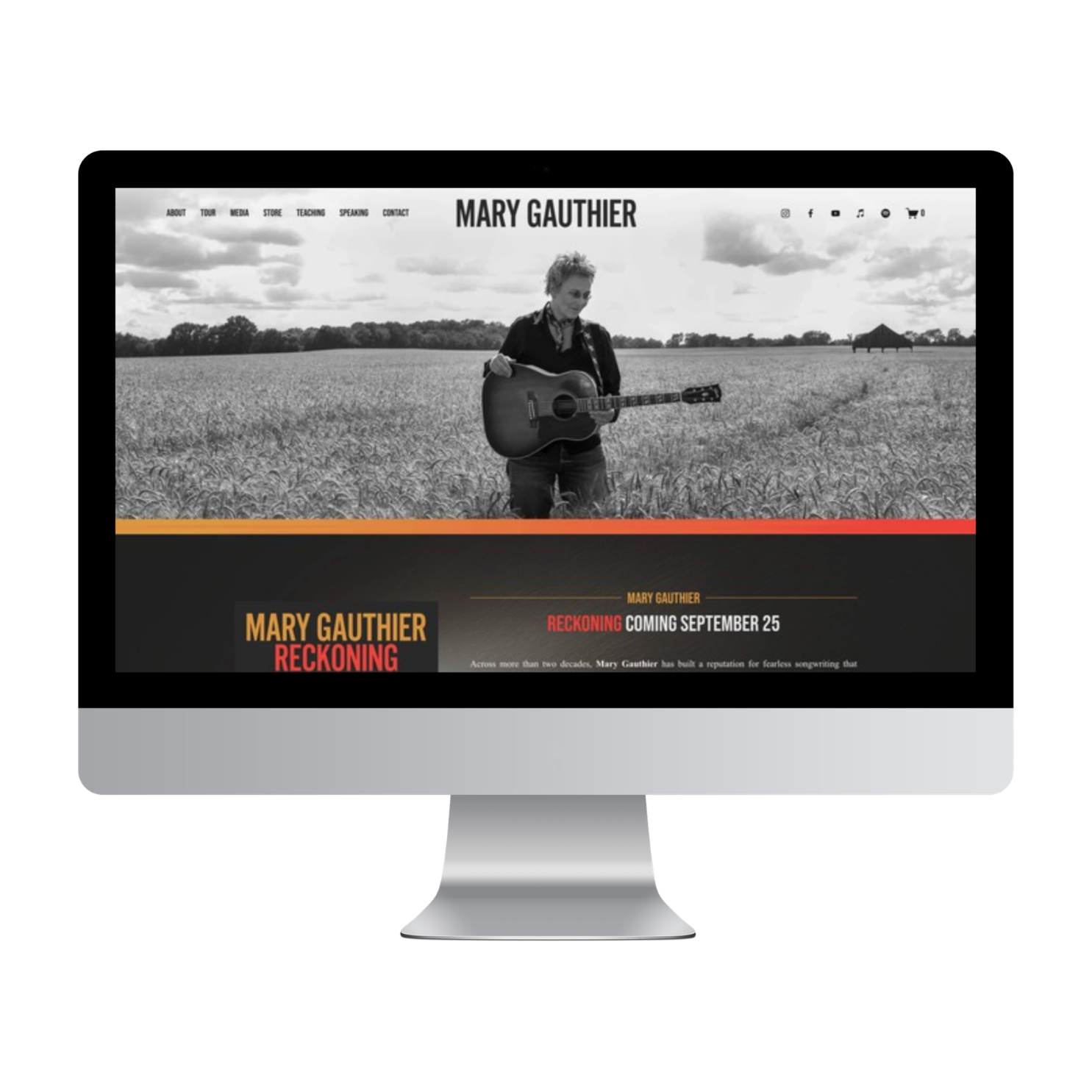
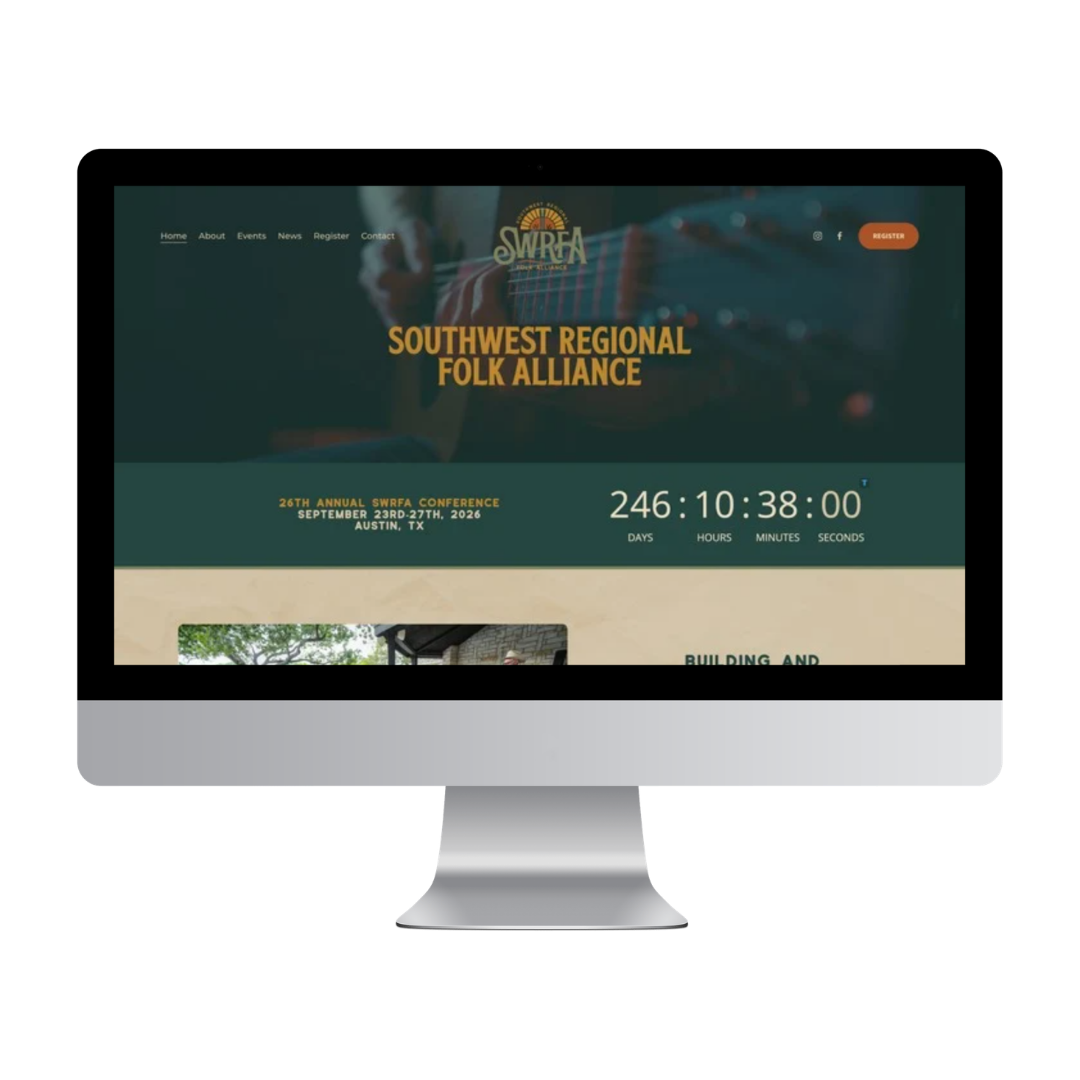

With Amanda preparing to release her first album in more than ten years, her online presence was due for a new beginning, too. The result is a cinematic, image-driven website that reintroduces Amanda and her music while giving this next chapter of her career a modern digital home.