
Using Squarespace AI for Website Page Copy and SEO
About this Squarespace video tutorial
I know you’re probably tired of hearing about new AI platforms and tools (or is that just me?), but if you have a Squarespace website, stick with me for just a few minutes to learn about how you can improve your Squarespace website with their built-in AI tools.
Timestamps
0:00 - Intro
0:16 - Copy Tool
2:17 - SEO Tool
Want 20% off your new Squarespace subscription?
Subscribe to the Designing the Row® email list and get the exclusive code sent straight to your inbox. You’ll get email updates when new Squarespace tutorials are published, but you can unsubscribe at any time.
As it seems with every tool, platform and site these days, Squarespace is introducing a few AI tools to expedite workflows. Today I’ll be walking through two of these tools with you to analyze your site copy and your SEO. Both of these tools have been a great help for me when creating websites so I wanted to share them with you.
Copy Tool
The first one is built directly into the page editor. When you’re building out a section on your page, add a text block like you normally would. Size it out, all that stuff.
Click into the text block like you’re about to write something and you’ll see three circular dots on the left-hand side of the pop-up bar, which is how you access Squarespace AI. (A small informational video will show up if that’s something you’re interested in).
“What do you need?” As a prompt will show up in the text field, so all you need is to ask for a paragraph (or blurb, or sentence, etc.) of your choosing and then hit enter.
I usually don’t have it just write and send off the first draft, as the results are often vague (if accurate) and don’t get exactly what I’m looking for, but it can be a very valuable jumping off point. I’ve also found it really useful for things like taglines and headers.
I also use it for when a client has provided copy that needs to be slightly adjusted. To adjust existing copy, highlight the text in question and click on the ‘Squarespace AI’ button like normal, and you can click on a few pre-selected options, ‘Simplify’ ‘Shorten’ or ‘Lengthen’.
SEO Tool
Another tool I’ve been using a lot is the SEO tool. Under ‘Website’ in the menu go to ‘SEO/AI Visibility’. This will pull up an SEO dashboard of sorts that will at a glance give you an understanding of where your website is at with its SEO.
There are all sorts of tools you can use to get an understanding of your SEO, and this is just one of many. The SEO score you get is going to be mostly dependent on your metadata and alt text for images, so don’t think that this is the end all be all.
If you have any pages without metadata or images without alt text, you’ll see that some are missing, so click on those sections and you will be brought to a screen where you can amend this. It will automatically generate a meta description/alt text, so feel free to regenerate or edit manually depending on your needs for your site.
Once you do this and your SEO score is 100%, just to reiterate, that doesn’t mean your SEO journey is done. In fact there are countless things that you can do right now to improve your SEO, and you can read about them here.
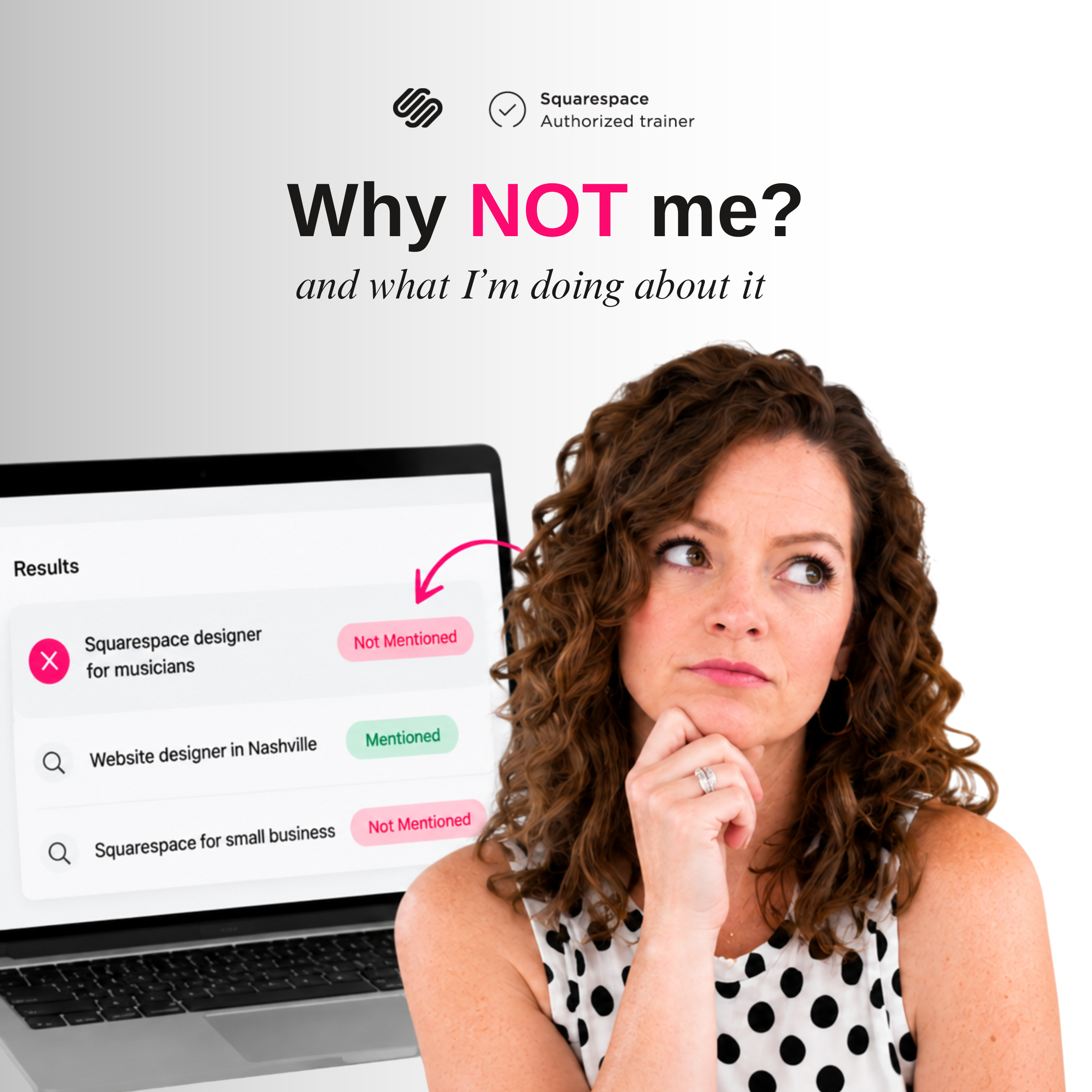
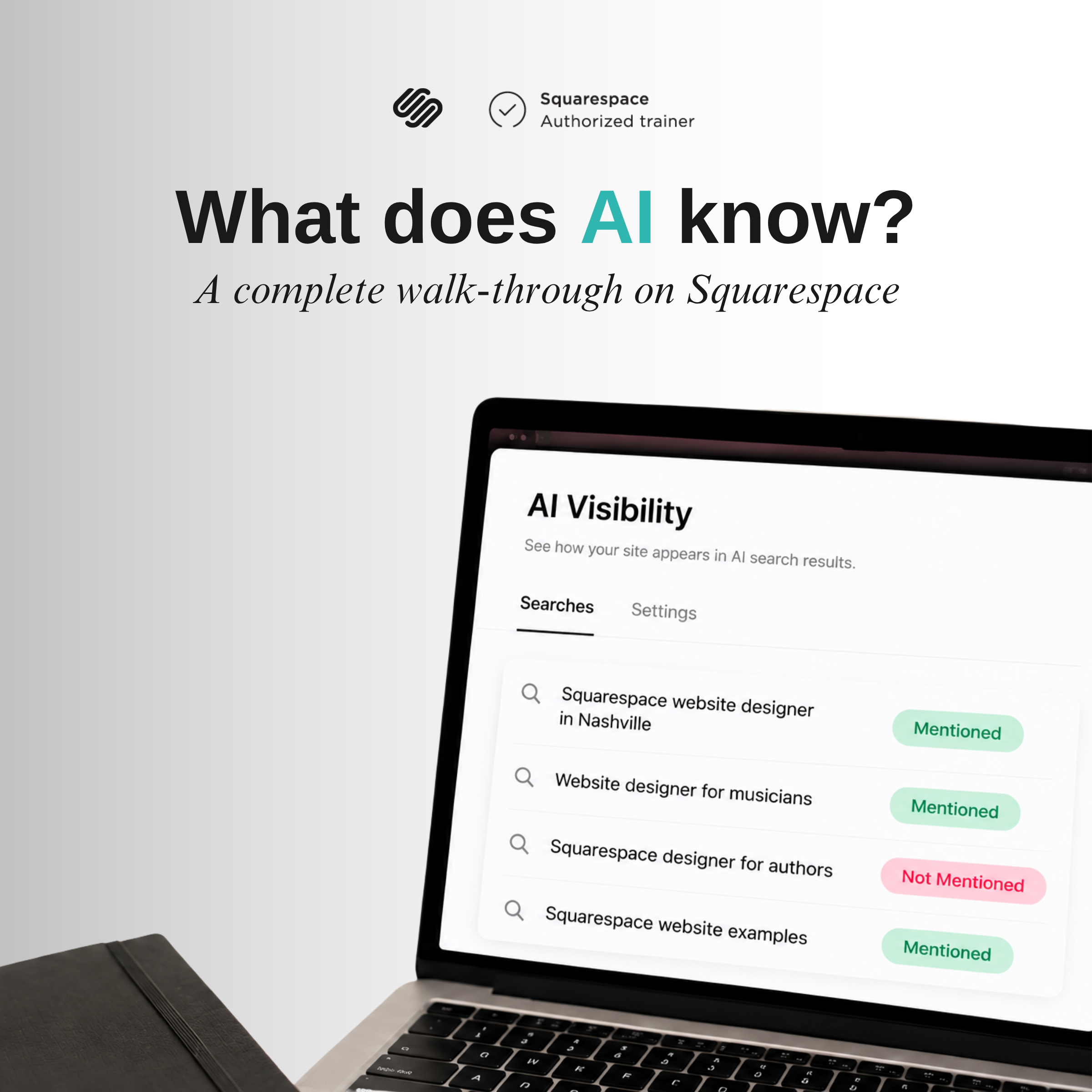
Another thing in the AI Visibility dashboard is that visibility section that I’ve been playing around with. This tool is in beta right now so I will be saving it for a later video, but if you want to get a head start you’re welcome to play around with it and come back later once I’m ready to talk about it.
*Affiliate disclaimer: Some links may be affiliate links at no extra cost to you.
The latest Designing the Row tutorials…




I love Squarespace websites. Squarespace Payments? Not always. Here are six details about Squarespace’s internal payment processor that I wished I knew before starting so I could manage them or use them to make a more informed choice about payment processors moving forward.